Point
my number
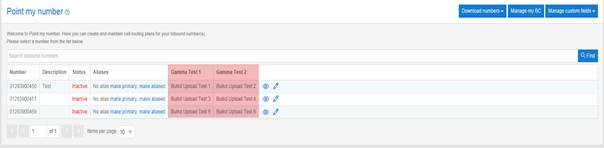
Point my Number is the tab through which all call plans are
created, edited and maintained by the User. Access to this tab is provided with
all administrator logins for Contact Point, Path and Pro. It is possible to
remove access or give read only access to this tab for subsequent user logins
should there be a specific requirement to deny them access to this page which
is central to call plan management. Call plans are shown in the homepage of
Point my Number. Up to 100 call plans are available per number and they can be
associated with a description to assist the user.
Point my number Access Restrictions
|
Customer |
Customer must have subscribed to Contact
Point, Contact Path or Contact Pro . To use custom fields the customer
must have subscribed to Advanced Statistics |
|
User |
Must have Point my number enabled Must have access to the numbers
enabled To Create, edit and delete custom
fields and download and upload custom field templates the user must have
Enable custom field management enabled |
In order to be able to access the Point my number screen
your user profile must have the Point my number role enabled.
If you require access to these features but don’t have it
then please contact your Service Provider.
Description
The Point my number tab allows you to search for the
particular number that you wish to edit using the 'Search Inbound Numbers'
function.
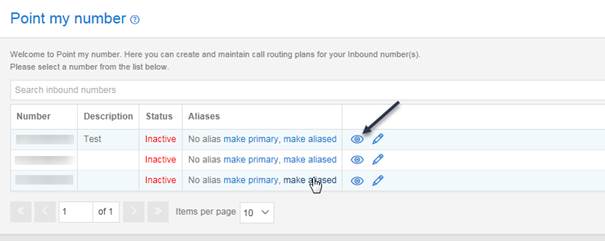
To begin creating a call plan or to view/edit the call plans
associated with a particular phone number, there is a button which can be used to open the
associated call plan (please see screenshot below):
Manage my BC
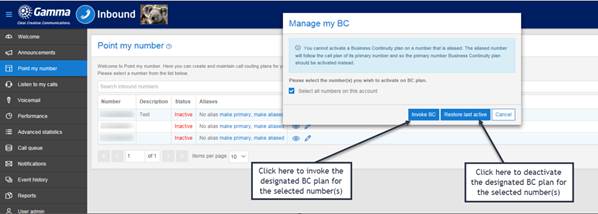
The Manage my BC button enables you to invoke a pre
designated Business Continuity plan for your Inbound
number(s). There is also the option to restore the last active call plan when
the BC routing is no longer required (see How to use ‘One Touch’ for more detailed instruction on how to use
the Business Continuity functionality).
After clicking on the Manage my BC plan you will see the
popup window shown below.
Manage Custom Fields
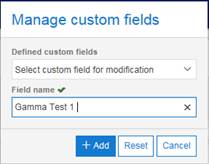
The Manage Custom Fields button enables you to create, edit
and delete. Select the Manage custom fields button in order to view the pop up
box, enter the title of the custom field you require and hit add. Once added to
the database the Field name box will clear and you can enter further custom
fields.
 Please
note it’s important that you plan the sequence in which you want to view the
columns as they will be added to the point my screen in the order in which you
create them. If you make a mistake, you will be able to clear your created by
fields by selecting them and pressing delete, meaning you can then add the
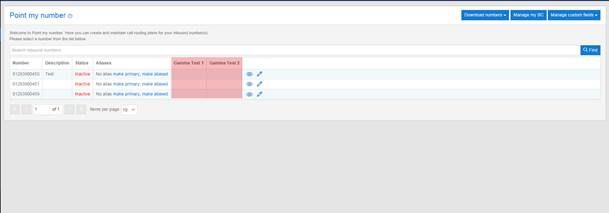
fields again. In the example below, Gamma Test 1 was added first, followed by
Gamma Test 2.
Please
note it’s important that you plan the sequence in which you want to view the
columns as they will be added to the point my screen in the order in which you
create them. If you make a mistake, you will be able to clear your created by
fields by selecting them and pressing delete, meaning you can then add the
fields again. In the example below, Gamma Test 1 was added first, followed by
Gamma Test 2.
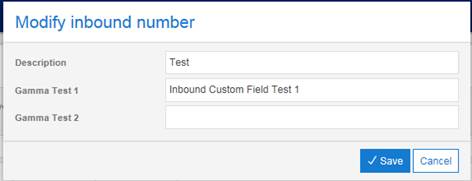
In order to enter data into any of the custom fields you
have created you will need to select the modify option,
once you have selected this a pop up box will appear entitled "Modify
Inbound Numbers". In this pop up box you will see a list of all your customer
fields, each with a text box next to them, the information you enter into these
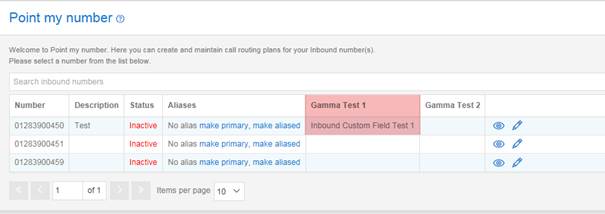
text boxes will be displayed against your field. In this example, for the Gamma
Test 1 field I entered a value of "Inbound Custom Field Test 1" (see
screenshots below):
Download
Numbers
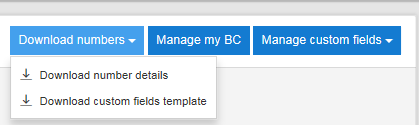
The Download Numbers button allows you to download a CSV of
either Number Details or custom fields template, once cicked you will be presented with these options.
Download number details
If you select Download number details then the platform will
pull a list of all CLI’s on the account into a CSV as below.

Download custom fields template
If you select Download custom fields
template this will produce a CSV file that contains all of the numbers on the
account, the Description and the column headers containing the name of your
custom fields.
The header fields MUST not be modified or the upload will
fail. When you open the CSV file within Excel you will need to correct the
changes Excel made to the column format. The number field will be sent in e.164
and will need to amended before uploading back to the
Inbound platform.
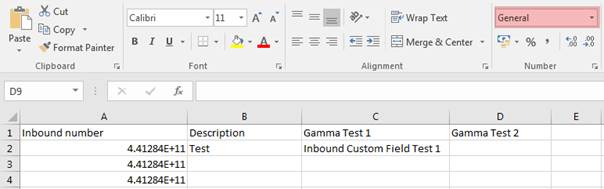
Highlight the entire Inbound Number column and change format
from General to Number, then remove the decimal points to return the number
back to e164 format as below.
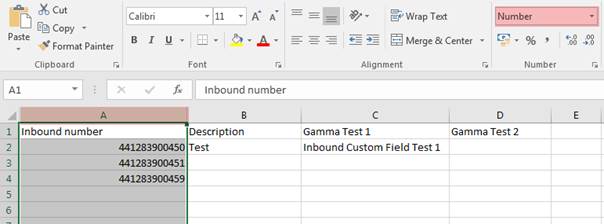
Update the custom fields with the relevant data and save the
spreadsheet, keeping it in CSV format, in a location you can return to for the
purpose of uploading. We recommend you introduce a backup regime of the custom
field values in the event that you need to restore.

Upload
custom fields
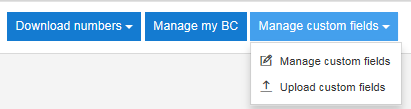
If you select the "Manage Custom Fields" option,
you will be able to select the "Upload Customer Fields" function:
The following popup box will be displayed when you select
this option, from here use the select file option to
browse your PC and find the custom fields template that you would like to
upload:
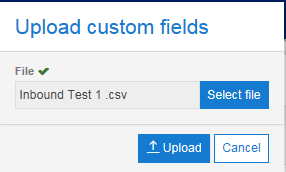
The custom fields will now be bulk uploaded (existing
entries will be overwritten) with the values contained within the CSV file.